How to add your IBAN to invoices
Settings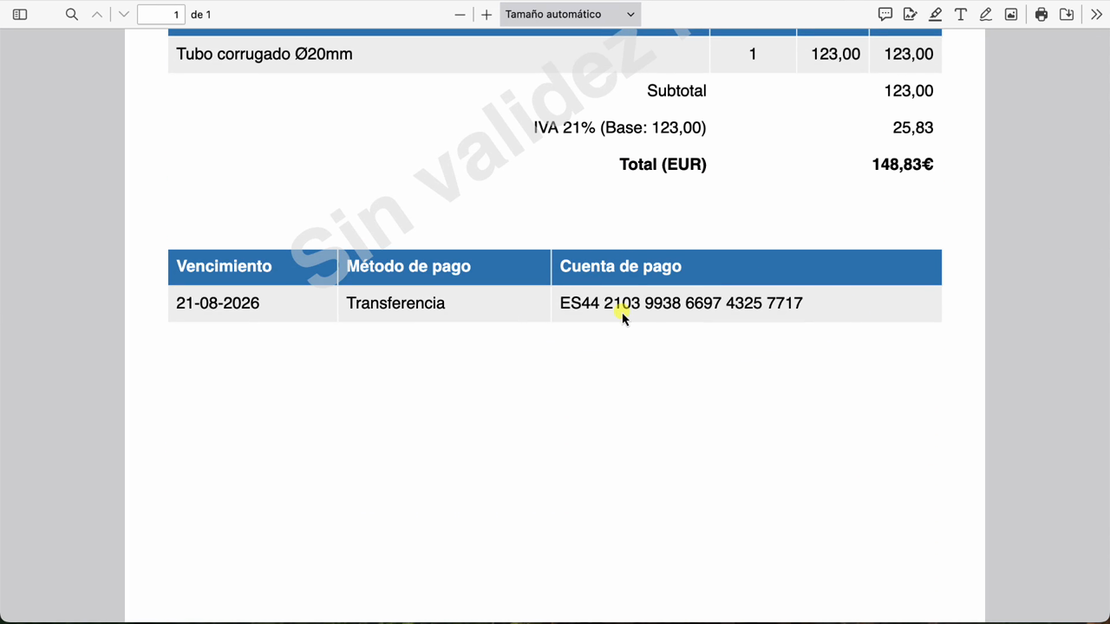
Learn how to configure a bank account and payment method so the IBAN appears in the PDF version of your invoices.
In this video, we show you how to create or review a bank account with an IBAN, link it to a payment method and enable the payment account in the template. You’ll also see how to check the result in the PDF and update invoices created before the change.
Video transcript
Do you want your IBAN to appear in the PDF version of your invoices? Let's set it up step by step. To do this, you need a bank account with an assigned IBAN and a payment method linked to that bank account, plus a template configured to show the payment account. Let's start with the bank account. Open Bancos and check whether the bank account with the IBAN you want to show already exists.
Check that the details are correct and continue to the next step. If you have not created it yet, select Añadir un banco. Choose Cuenta bancaria. The application will then suggest linking it to your bank. You can link the bank account or, if you prefer not to link it, select Continuar sin enlazar con el banco and confirm.
You can now enter the name used to identify the bank account and its IBAN. Complete the required fields and select Guardar y cerrar. The second step is to have a payment method linked to this account. If you already have a payment method linked to the bank account under Ajustes and then Métodos de pago, continue to the next step.
If you do not have one, select Nuevo método de pago. In Nombre, enter the name you want. Use one that is easy to identify, such as Transferencia. Then, under Banco de ingreso, open the selector, choose the bank account and select Guardar y cerrar. The last step is to tell the template to show the bank account.
Open Ajustes and then Plantillas. Open the template you use for your invoices. Go to the Textos and Pie tabs and use the blue eye to select Cuenta de pago so that it is shown. Save your changes. With this option enabled, new documents created from now on will show in the PDF the bank account associated with the payment method added to the invoice.
You can now create a new invoice and, in Método de pago, select the payment method you created. Save the invoice and download the PDF. The footer will show the payment method and bank account with its IBAN. Template changes only apply to invoices created from now on. If you need the IBAN to appear on an invoice created before configuring the template, open it, make a change and save it again.
If you have more than one bank account, create a bank account and payment method for each one. When you select the payment method on the invoice, its associated bank account will be shown.