How to complete the accounting year-end close
Accounting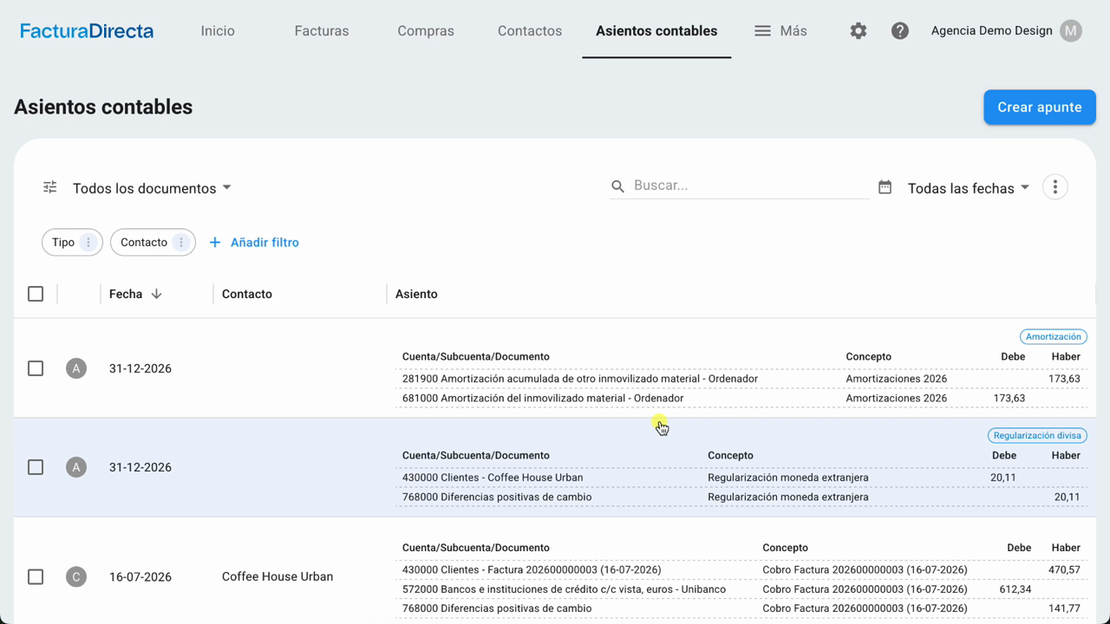
Learn how to review your accounts and create currency adjustments, annual depreciation and year-end closing entries in FacturaDirecta.
In this tutorial, we show you how to prepare and complete the accounting year-end close in FacturaDirecta. You’ll see how to review your accounts from Informes, record the foreign-currency adjustment and annual depreciation, create the closing entries and delete them if you need to correct the financial year.
Video transcript
In FacturaDirecta, with the Total plan and full accounting, you can complete the year-end close from Asientos contables. Before closing, check that your accounts balance. To do this, go to Informes from the top menu and review the balances, ledgers, taxes, inventory, accruals and any pending adjustments.
If you work with an adviser, validate them together. Closing a financial year means finalising the accounts for that year. After the close, FacturaDirecta creates entries to close the period and prepare the opening of the next year. If you worked with foreign currencies, first record the currency adjustment.
Go to Asientos contables and click Crear apunte, then select Ajuste de moneda extranjera. Choose the date click Realizar el ajuste de moneda extranjera. FacturaDirecta will the exchange differences automatically using the exchange rates for that date and prepare the corresponding entry. This updates your foreign-currency balances before you close the year.
Next, if you have registered fixed assets, create the annual depreciation entry. Return to Crear apunte and select Amortización anual. Select the financial year. FacturaDirecta will find purchases marked as fixed assets with depreciation enabled and generate an entry for the year's depreciation dated 31 December.
This adjustment records the loss in value of your assets as an expense. Once you have reviewed the accounts and recorded the adjustments, you can close the year. From Asientos contables, click Crear apunte and select Cierre del año. Open the wizard the financial year you want to close. To prevent later changes to documents that affect the closed accounts, you can lock the accounts up to a specific date.
Once reviewed, click Realizar el cierre de año. FacturaDirecta will automatically create the closing entries: the close for groups 6 and 7, the period close, next-period opening and, where applicable, retained earnings. You can open these entries from the list to review their details. If you later need to change or add documents for the closed year, first delete the closing entries, make the correction and close the year again.
To delete the close, go to Ajustes using the cogwheel at the top of the application, then go to Avanzado and change the lock date. Next, in Asientos contables, open any closing entry and, from the three vertical dots, select Borrar. The application will offer to delete them all. And remember: the accounting close must be the final step.
First review and adjust; then close the financial year.