Create a SEPA direct debit batch
Invoicing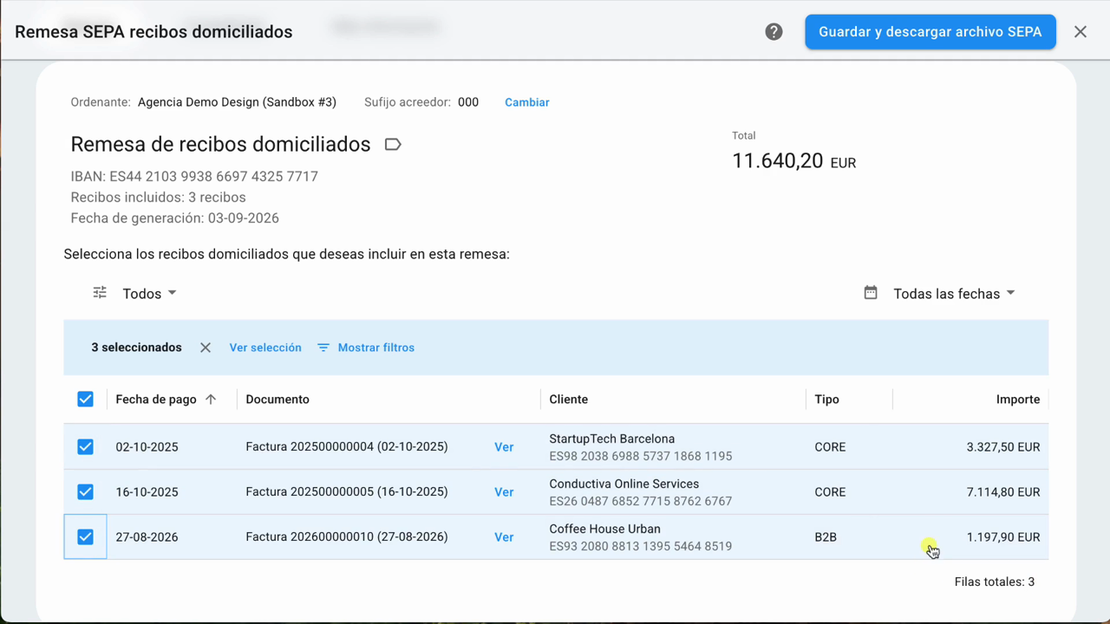
Learn how to create a SEPA direct debit batch in FacturaDirecta, from setting up mandates to downloading the file for your bank.
In this tutorial, we show you how to set up the bank account and the customer’s SEPA mandate, assign it to outstanding invoices, and create a direct debit batch. You’ll also see how to check the amounts, download the XML file for your bank, and record the payment.
Video transcript
Do you want to collect your customers’ invoices by direct debit? In this video, we show you how to prepare a SEPA batch in FacturaDirecta and download the file to send it to your bank. To create a batch, you need a bank account with its IBAN. Also check that the correct creditor suffix is configured.
In addition, every customer you want to charge by direct debit needs a SEPA mandate. You can create it from their customer record, on the “Métodos de pago” tab, by clicking “Nuevo método de pago”. Then select “Mandato SEPA (recibo domiciliado)”. Enter the customer’s IBAN and complete the mandate details.
The reference identifies the collection authorisation. Choose CORE or B2B as appropriate, state whether the payment is one-off or recurring, and add the signature date. When finished, save the mandate. You must add this mandate as the payment method to every invoice you want to collect through a bank batch.
For an invoice to appear in the list of items available for a batch, it must be awaiting payment and have the customer’s SEPA mandate as its payment method. If either condition is missing, it will not appear in the list for the batch. Now let’s create it. Go to the bank batches module, which you’ll find under the “Más” button at the top of the program.
Click “Generar remesa bancaria” and then select “Remesa de recibos domiciliados”. Check the batch header details. Then select the invoices you want to include. Check the customer, due date and amount of each invoice, as well as the total number of direct debits and the total amount. Remember that CORE and B2B mandates are managed separately.
Once you’ve checked everything, click “Guardar y descargar archivo SEPA”. FacturaDirecta saves the batch and downloads an XML file. Upload it to your bank’s online banking service so it can process the collections. When you generate the batch, the included invoices move to “Pagado” to prevent them from being added again.
The batch remains pending until the bank processes the collections. When you receive the funds, open its details and click “Registrar ingreso”, or reconcile the bank transaction to mark it as collected.