Create a bank transfer batch
Invoicing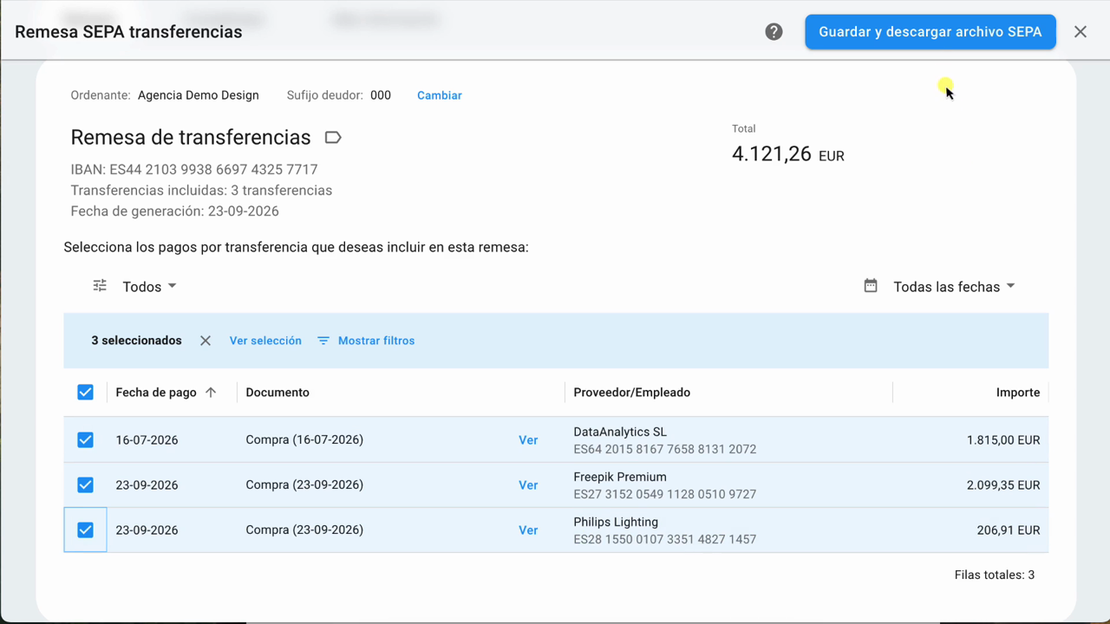
Learn how to create a SEPA bank transfer batch in FacturaDirecta, download the XML file, and record the payment.
In this tutorial, we show you how to prepare bank details and payment methods, select outstanding purchase invoices or payrolls, and generate the SEPA file to send to your bank.
Video transcript
Want to pay several purchase invoices or payrolls by bank transfer? In this video, we show you how to prepare a SEPA payment batch in FacturaDirecta and download the file to send to your bank. To create a batch, you need a bank account set up with its IBAN. Also check that the correct debtor suffix is configured.
Each supplier or employee you want to pay by bank transfer needs a “Transferencia SEPA” payment method with their IBAN. You can create it from their profile, under the “Métodos de pago” tab, by selecting “Nuevo método de pago”. Then select “Transferencia SEPA”, enter the details, and save it. This is the payment method you’ll need to add to every purchase invoice or payroll you want to include in the batch.
For a document to appear in the list of available payments, it must have an outstanding amount and the payment method “Transferencia SEPA” for the supplier or employee. If either condition is missing, it won’t appear in the list. Now let’s create the batch. Go to “Remesas bancarias”, which you’ll find under “Más” at the top of the app, and select “Generar remesa bancaria”.
Select the option “Remesa de transferencias” and choose the source bank account. Check the batch header details, such as the payer and debtor suffix. If your bank supports it, you can also group all payments into a single bank charge. Then select the payments you want to include. Check the supplier or employee, payment date, and each amount, as well as the total number of transfers and the total amount.
Once reviewed, select “Guardar y descargar archivo SEPA”. FacturaDirecta will save the batch and download an XML file. Upload it to your online banking so your bank can process the payments. When you create the batch, the included documents change to “Pagado” to prevent them from being included again.
The batch remains pending until the bank completes the payments. Once complete, open the details and select “Registrar pago”, or reconcile the bank transaction to mark it as paid. That’s it: your transfer batch is ready to send to the bank.